How to Take Photos in the Dark With Your Phone: 10 Party Tips
Blurry, grainy, too dark? These 10 tips show you how to take photos in the dark with your phone – from Night mode on iPhone and Android to exposure lock, flash and a light touch of editing.
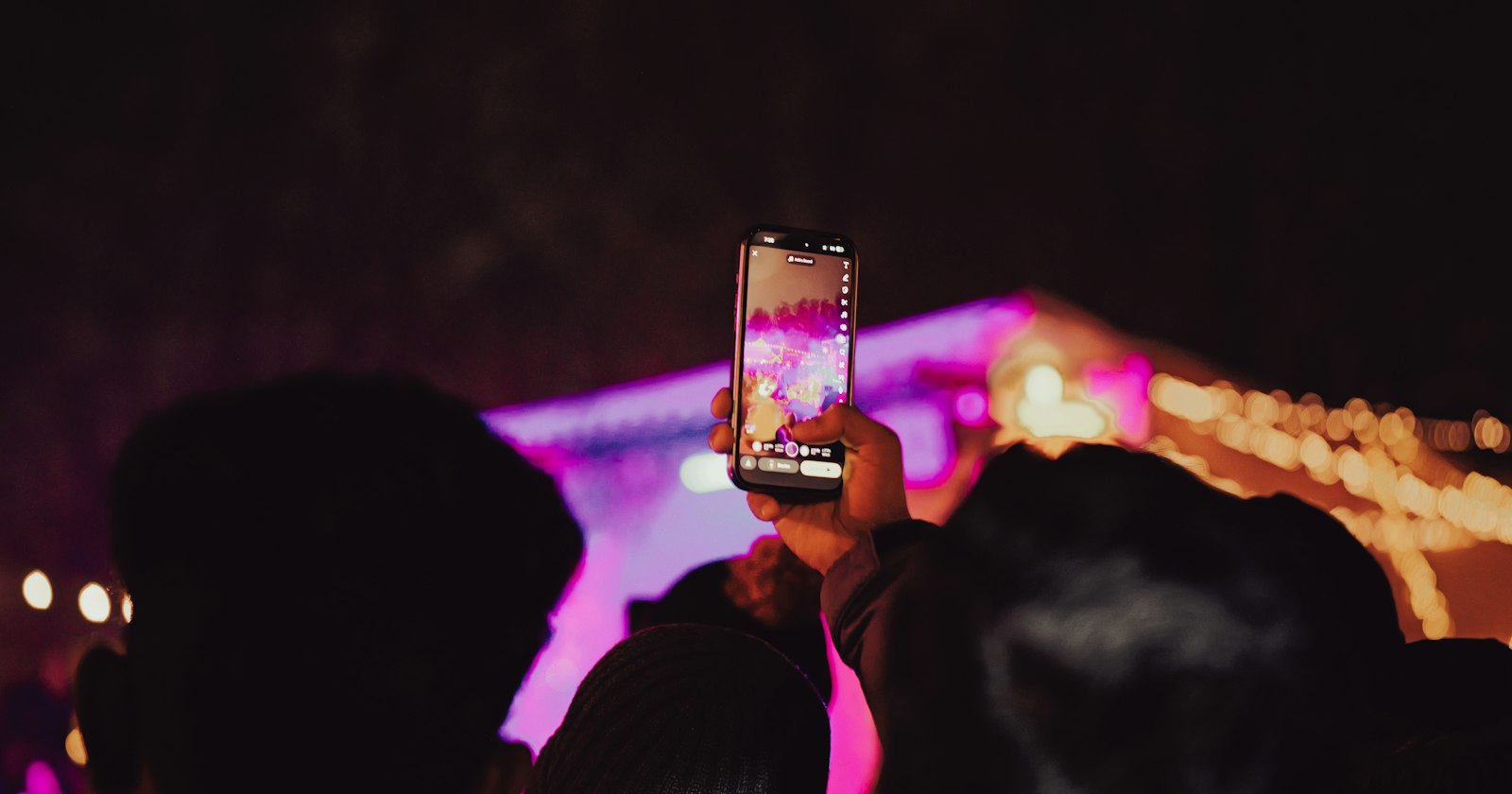
At parties, the best moments tend to happen in the worst light: on the dance floor, around a candlelit table, outside at midnight. And we all know the results – smeared faces, grey noise, blown-out lights.
The good news: modern phones are surprisingly capable in low light if you give them a little help. The 10 tips below work on iPhone and Android. Where the two differ, we use the feature names Apple, Google and Samsung use themselves (as of October 2026).
Why are phone photos bad in the dark?
A camera sensor needs light. When there isn't much, your phone has three options: expose for longer (so the shot shakes or moving people blur), amplify the signal (so you get noise), or combine several frames into one (that's what Night mode does). Nearly every tip below tackles one of these: more light, less shake, smarter exposure.
10 tips for taking photos in the dark
01Clean the lens
It sounds obvious, but it's a very common reason for hazy shots with a glow around every lamp. A fingerprint on the lens scatters light, and in the dark it shows. For blurry photos, Apple specifically recommends cleaning the camera lenses with a microfibre cloth and removing any case or accessory that might block the camera or flash. A glasses cloth in your pocket is worth its weight in gold at a party.
02Use Night mode (and understand it)
Night mode captures several frames and merges them into one brighter, cleaner photo. Here's what it's called on the major brands:
- iPhone: Night mode is available on iPhone 11 and later. It turns on automatically in low light, and the Night mode icon at the top of the screen turns yellow. A number next to it shows how many seconds the capture will take. Tap the icon to lengthen the time with a slider (up to "Max").
- Google Pixel: The feature is called Night Sight. In low light it switches on automatically in Photo or Portrait mode; you can also pick it from the mode carousel.
- Samsung Galaxy: You'll find Night mode in the Camera app under "More", then "Night". Samsung says it combines 30 images into one clear photo; availability depends on the model and software version.
At a party, keep in mind that Night mode takes a moment. It's ideal for still scenes – the table, the decorations, a group shot. For people dancing, not so much: see tips 6 and 8.
03Hold the phone steady or brace it
In the dark, any movement during the capture turns into blur. Apple advises holding your iPhone steady until a Night mode capture finishes, or placing it on a solid surface or tripod. At a party that means:
- Tuck your elbows in and hold the phone with both hands.
- Lean against a wall, a door frame or the back of a chair.
- Rest the phone on the table, a shelf or even a glass.
- Use the self-timer for group shots. For Night Sight on a tripod, Google even suggests a three-second timer so tapping the shutter doesn't shake the phone.
And don't whip the phone away the instant you tap. Wait until the capture is done.
04Lock focus and exposure
In low light, the camera likes to focus on the brightest thing in the frame – the fairy lights instead of the face. So tap the person you want to photograph.
- iPhone: Tapping sets focus and exposure on that spot. Touch and hold until "AE/AF Lock" appears, and both stay fixed even if the scene changes. Drag the slider next to the focus box up or down to brighten or darken the image.
- Google Pixel: Tap the person, then tap "Lock" to fix focus and exposure. The focus circle follows the subject as it moves.
- Other Android phones: Almost every camera app has tap-to-focus and a brightness slider; the lock feature has different names depending on the brand.
05Go a little darker, not brighter
It sounds backwards, but it's a trick many photographers use: nudge the exposure slider down slightly before you shoot. A slightly dark image keeps the colour of the lights and the mood, and shadows can be lifted gently afterwards. Blown-out, pure-white areas, on the other hand, are gone – there's no detail left to recover. A darker exposure also means a shorter capture time, so less shake.
06Flash or no flash?
Phone flash has a bad reputation because it flattens faces and turns the background black. Still, it has its place – you just need to know when.
No flash when the scene is still and the mood comes from the existing light: candles on the table, fairy lights, a group shot with the phone braced. Note that on iPhone, Live Photos and the flash aren't active in Night mode, and turning the flash on switches Night mode off. On Pixel phones, automatic Night Sight doesn't work while the flash is on.
Flash when there's lots of movement and your subject is close: people on the dance floor, a confetti moment, a jump. The short burst of light freezes motion. It doesn't reach far, though – for people across the room it won't help.
Tip: Set the flash to "Off" rather than "Auto" so you decide. And ask before you flash someone in the face from close up.
07Use the light that's already there
Your camera can only capture what's lit. Instead of making your phone fight the darkness, bring people to the light:
- Photograph people standing next to a lamp, under fairy lights or near candles.
- Make sure light falls on faces from the front or the side. Light from behind turns people into silhouettes.
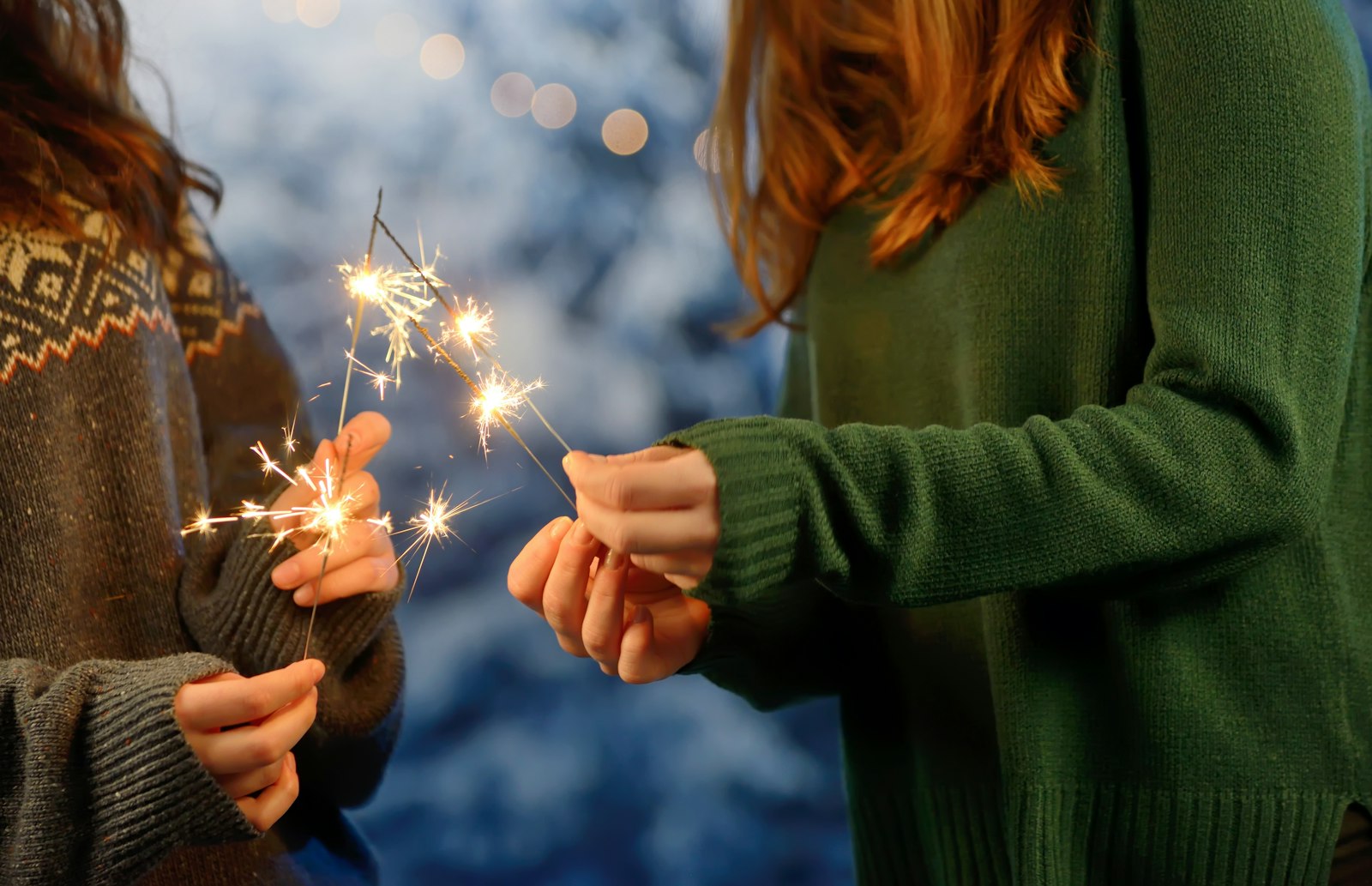
- Sparklers make great light sources: faces close to the sparks, but don't shoot straight into them.
- No light at all? Point a second phone's torch at a pale wall or ceiling. The bounced light is much softer than shining it straight at someone.
08Burst mode and Live Photos for movement
In the dark, maybe one shot in ten is sharp. So take ten.
- iPhone Burst mode: On iPhone 11 and later, slide the shutter button to the left and hold it to take a burst of photos; release to stop.
- iPhone Live Photos: A Live Photo records 1.5 seconds before and after you take the picture. Afterwards, tap Edit, pick a sharper frame with the slider and choose "Make Key Photo".
- Google Pixel: With Top Shot, the camera takes a burst and automatically suggests the best shot; Top Shot or Motion Photos needs to be switched on in the camera settings.
- Samsung and others: Nearly every phone can shoot bursts, but the gesture varies by model and software. Check your camera settings before the party.
Note: Live Photos aren't active in iPhone Night mode. So choose: still scene = Night mode, movement = burst or Live Photo.
09Get closer instead of zooming
Digital zoom mostly magnifies noise. Many phones also switch to a telephoto camera when you zoom, and that lens is often weaker in low light than the main camera. When in doubt, stay at 1× and take two steps forward. Bonus: getting closer makes party photos livelier anyway.
10Edit gently
The Photos app on iPhone and Google Photos both have sliders for exposure, shadows, highlights and warmth. For night shots:
- Lift the shadows a little instead of pushing the whole exposure up. That keeps the lights intact.
- Pull the highlights down a touch so lamps and candles get their colour back.
- Check the warmth: artificial light often looks too orange. A small nudge towards blue looks more natural.
- Black and white to the rescue: a very noisy photo often looks pleasantly grainy in black and white rather than broken.
Less is more: over-brightened night shots look grey and flat.
Cheat sheet: which setting for which situation?
Tip: print this page or take a screenshot.
| Situation | Best choice | Watch out for |
|---|---|---|
| Candlelit table, decorations | Night mode, no flash | Rest the phone on the table |
| Indoor group photo | Night mode + self-timer | Everyone close to the light |
| Dance floor | Flash or burst | Get close, don't zoom |
| Portrait under fairy lights | AE/AF Lock on the face | Exposure slightly down |
| Sparklers | No flash, exposure down | Don't shoot straight into the sparks |
| Fireworks | Night mode, phone braced | Shoot after the bang, use burst |
| Selfie in the dark | Night mode (iPhone 12 and later) or a light source in front of you | Keep your arm still |
And how do you get everyone's photos afterwards?
By the end of the night, the best party photos are scattered across twenty different phones. Filmriss solves that: the host creates an event and puts up a QR code, guests scan it and take photos straight in their browser – no app, no account. Each guest has a limited number of shots, and the photos only become visible to everyone the next morning, in original quality. Everything guests need to know is on our page Filmriss for guests.
The tips on light, steadiness, a clean lens and getting close (1, 3, 7 and 9) help there just as much as in your regular camera app. And because shots are limited, taking a second to brace your phone pays off twice.
Planning a party right now? Find ideas for activities and photo moments in our 30 New Year's Eve party ideas, our 50 party photo challenges and on our page about parties with Filmriss.
FAQ: taking photos in the dark with your phone
Why are my phone photos blurry in the dark?
In low light the camera exposes for longer, so any movement of the phone or the person during that time turns into blur. Bracing the phone, Night mode for still scenes, and burst or flash for movement all help.
Should I use flash when taking photos in the dark?
Skip it when the scene is still and the mood comes from existing light. Use it when people are moving fast and close to you. On iPhone and Pixel, turning the flash on disables Night mode or automatic Night Sight.
How do I turn on Night mode on iPhone?
On iPhone 11 and later, Night mode turns on automatically in low light and the icon at the top turns yellow. Tap it to adjust the capture time with the slider or to switch it off.
Does every Android phone have a night mode?
Most current models do, under different names: Night Sight on Google Pixel, Night on Samsung Galaxy. Whether and how it's available depends on the model and software.
How do I photograph fireworks with my phone?
Brace the phone, turn the flash off, pull the exposure down slightly and shoot in burst or as a Live Photo. On iPhone you can later apply the Long Exposure effect to a Live Photo to turn the fireworks into light trails.