QR Code for Wedding Photos: How to Make One (Free Template)
How to make a QR code your wedding guests use to share photos: step by step with a free table card template, the right print sizes, where to place it, and the mistakes couples make most often.
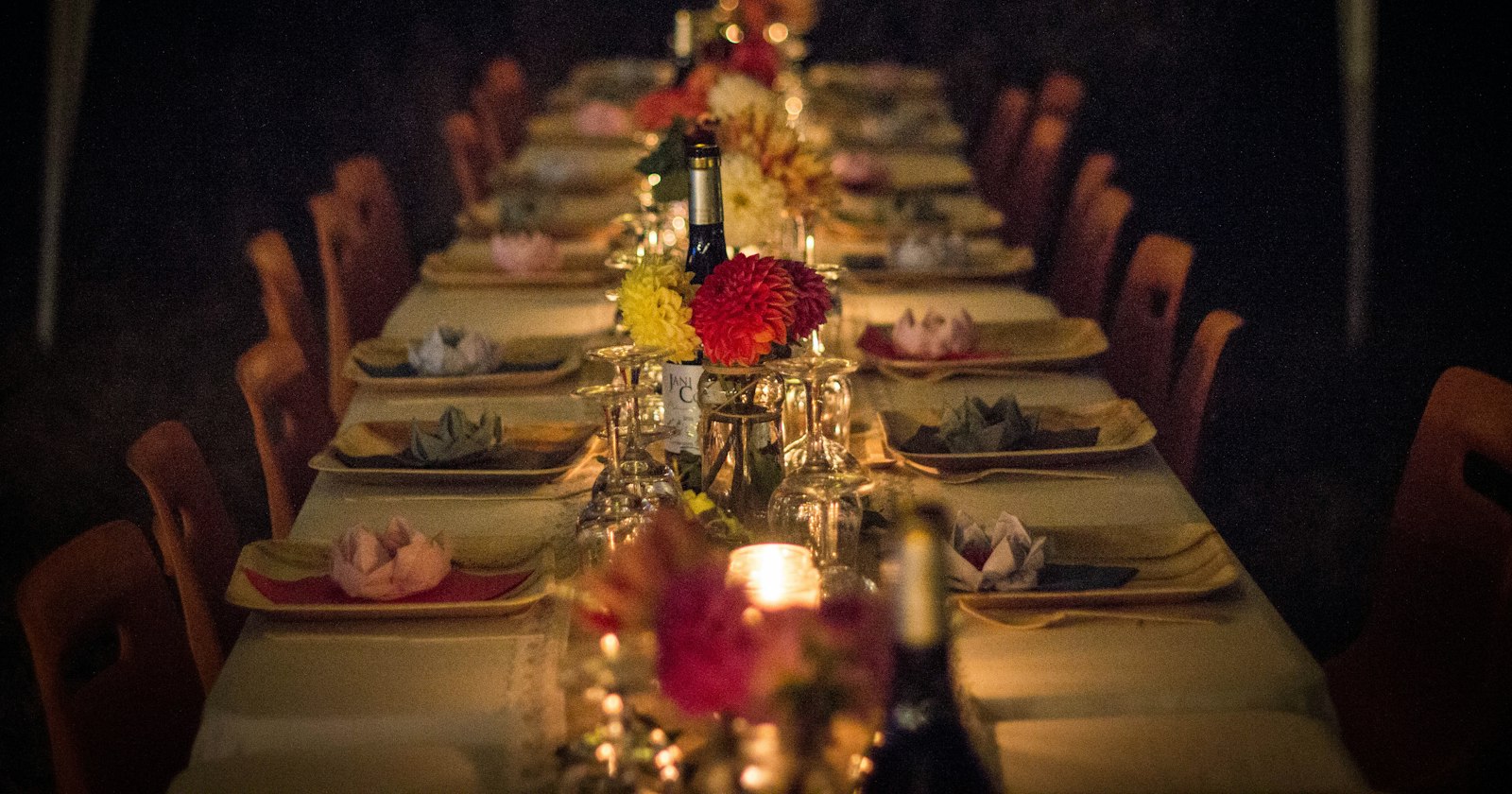
A QR code on every table has become the easiest way to get the photos your guests take: scan, snap, done. Whether it actually works on the day comes down to three things: where the code leads, how it's printed and where it's placed.
This guide walks you through making the code step by step, the print rules that genuinely matter (with sources), and the mistakes couples make most often. For the template, use our free QR table card generator.
What a wedding photo QR code needs to do
The QR code itself is just a signpost: it contains a web address that the phone opens. Whether guests end up sharing photos depends on what happens at that address. Check these five things first:
- No app, no account. Every extra step (download an app, sign up, set a password) loses people. Older guests in particular tend to give up here.
- Works in the browser on iPhone and Android. The destination has to work on both without workarounds.
- Original quality. Photos sent through messaging apps are often compressed. For a photo book you want full resolution.
- One place for everything. All photos should end up in one spot, not scattered across group chats and private camera rolls.
- Privacy you're comfortable with. Decide who can see the photos and how long they're kept.
Broadly, there are two kinds of destination: a shared album (Google Photos, iCloud, a cloud folder) that guests upload to, or an event camera in the browser that guests shoot with directly. A shared album is quick to set up but often needs an account or a particular app. We've compared both in shared album vs. event camera, and for the wider picture see how to collect photos from wedding guests.
How to make a QR code for wedding photos, step by step
Here's how it works if you use Filmriss as a digital disposable camera. Steps 4 to 6 apply to any QR code, whichever service you choose.
Step 1: Create your event
Create an event for your wedding in the Filmriss app. You decide how many shots each guest gets. The limit makes people shoot more deliberately, just like a real disposable camera. Creating an event is free. Once it's set up, you get your event code.
Step 2: Design the table card from the template
Open the QR table card generator. It's free and doesn't require sign-up. You fill in:
- Name on the card, e.g. "Lena & Tom"
- Line underneath, e.g. "Our wedding camera · Table 4"
- Event code from the app (without a code, the card keeps a placeholder, which is handy for trying out designs)
Then pick one of three styles (Glass Night, Light, Rosé) and one of three formats:
| Format | Size | Best for |
|---|---|---|
| A6 table card | 10.5 × 14.8 cm (approx. 4.1 × 5.8 in) | every guest table |
| A5 welcome sign | 14.8 × 21 cm (approx. 5.8 × 8.3 in) | entrance, drinks reception, bar |
| Square | 10 × 10 cm (approx. 3.9 × 3.9 in) | place settings, favours, photo corner |
Step 3: Print or save as PDF
You can print straight from the generator or save the card as a PDF and take it to a print shop. Use sturdy card stock so the card stands up on the table.
Step 4: Print one test card at real size
Before you print 15 table cards and two signs: print exactly one card at its real size, on the real paper, with the real printer. A code that scans perfectly on screen can suddenly struggle on matte recycled paper or from an inkjet that's running low.
Step 5: Test-scan it like it's the wedding day
Scan the test card the way your guests will:
- With at least three phones: an iPhone, an Android phone and an older model (borrow your parents' or grandparents').
- With the built-in camera app, not a dedicated scanner app.
- From a realistic distance: sitting at the table, roughly arm's length.
- In low light, ideally in the evening with candles or dimmed lights.
- On mobile data, not Wi-Fi. Check whether there's signal at the venue at all, and arrange guest Wi-Fi if needed.
If the right page opens without hesitation for every tester, you're ready to print the lot.
Step 6: Print everything and set it out
Only now print the full run. Pack two or three spare cards in case one meets a glass of red wine on the day.
Where to put the QR code at your wedding
One sign at the entrance isn't enough. Guests see it once as they walk past and forget about it. Spread several touchpoints across the day instead:
- On every table. This is the key spot: guests are sitting down, have time and are holding their phones anyway. One A6 card per table is enough.
- At the entrance or drinks reception. An A5 welcome sign on an easel greets guests and explains the idea early.
- At the bar or dessert table. People wait here and have (mostly) free hands.
- In the photo corner or next to the photo booth. Anyone already taking photos is easy to win over.
- In the order of service or on the menu. A small code complements the table card but doesn't replace it.
- On the invitation or save-the-date (optional). Guests know what's coming. Just make sure the event already exists by then.
Set the cards up so the code faces the seats and doesn't disappear behind the centrepiece. On long banquet tables, plan one card for every six to eight seats. Ask your best man, maid of honour or DJ to mention the camera during dinner. A quick announcement does more than any sign.
For more ideas on photos at your wedding, see our page on the digital disposable camera for weddings. And if guests need a nudge, our wedding photo scavenger hunt fits nicely on the back of the table card.
Design and printing: the rules that actually matter
A few technical basics decide whether a QR code scans or not. The figures below come from the documentation of Denso Wave (the company that invented the QR code), guidance from GS1 UK and QRStuff's sizing guide (as of October 2026).
Size: at least 2 × 2 cm, ideally 4–5 cm on a table
The absolute minimum for printed QR codes is 2 × 2 cm (0.8 × 0.8 in). Below that, small printing imperfections quickly cause failed scans (QRStuff). For the right size there's a simple rule of thumb, the 10:1 rule: the code's width should be about one tenth of the scanning distance.
| Where | Typical scanning distance | Recommended code width |
|---|---|---|
| Table card (A6 / square) | approx. 40–50 cm (16–20 in) | 4–5 cm (1.6–2 in) |
| Welcome sign (A5) on an easel | approx. 1 m (3 ft) | approx. 10 cm (4 in) |
| Large sign / poster | approx. 2 m (6.5 ft) | approx. 20 cm (8 in) |
| Order of service / menu (in hand) | approx. 20–25 cm (8–10 in) | at least 2–2.5 cm (0.8–1 in) |
The distances are rough assumptions; the code widths follow from the 10:1 rule. When in doubt, go a little bigger.
Quiet zone: the clear margin around the code
A QR code needs a clear, light margin on every side, called the quiet zone. According to Denso Wave it must be at least four modules wide. A module is one of the small squares the code is made of. Nothing goes in that margin: no flourishes, no text, no floral border. A margin that's been cropped too tightly is one of the most common reasons printed codes fail (QRStuff).
Contrast: dark on light
The safest choice is a black code on a white background. GS1 UK recommends dark colours on a light background and advises against swapping light and dark. QRStuff gives a contrast ratio of at least 4:1 as the minimum and notes that inverted codes (light on dark) fail on many devices.
For your styling, that means: blush, gold or pastels look lovely for frames and lettering, but not for the code's modules themselves. A dark card design is fine as long as the code sits on a light area with enough margin.
Error correction: how much damage a code can take
QR codes have built-in error correction. Depending on the level, the data can still be read when part of the code is covered or dirty (Denso Wave):
| Level | Recoverable up to approx. |
|---|---|
| L | 7% |
| M | 15% |
| Q | 25% |
| H | 30% |
According to Denso Wave, level M is the most frequently used. Higher levels make the code more robust but add data, and therefore more modules, so each module gets smaller at the same print size. If you use another generator and want a logo or monogram in the middle, choose a high level (Q or H) and test especially carefully. In general: the shorter the web address in the code, the fewer the modules and the easier it scans.
Paper and printing
- Matte, heavy card stock rather than gloss. Shiny surfaces reflect candles and overhead lights.
- No laminate or acrylic directly over the code if light reflects off it. If you do use it, test the card exactly as it will be displayed.
- Full print quality, not draft or ink-saving mode.
- Don't let it scale. In the print dialog choose "Actual size" or 100% so that A6 stays A6.
- Add one short line. A code without explanation looks like decoration. Say what happens, e.g. "Scan & snap: our wedding camera".
Tip: print this page or take a screenshot so you have the checklist with you at the print shop.
The most common mistakes
- Not tested at real size. The code scans on your laptop but not on the printed A6 card. Fix: always print one test card first and scan it with several phones.
- Code too small. Stamp-sized codes in the order of service often only work if you hold the phone right up to them. Below 2 × 2 cm it gets risky.
- Quiet zone cropped. The clear margin gets lost when trimming or under decorative elements.
- Too little contrast. A rose-gold code on champagne paper looks elegant but scans poorly.
- Inverted light on dark. Some cameras cope, many don't.
- Glossy paper in candlelight. Reflections make the code unreadable for the camera.
- Only tested on Wi-Fi. A barn venue in the countryside may have barely any signal. Test on mobile data and arrange guest Wi-Fi.
- Destination needs an app or account. Anyone who has to sign up first often won't bother.
- Code leads nowhere. A test code or placeholder got printed, the event wasn't created yet, or a generator subscription has since lapsed. With paid generators, check whether the code keeps working after any trial period.
- No explanation, no announcement. Without a short line of text and a mention on the day, the cards get ignored.
What happens to the photos?
With Filmriss, guests take photos right in their browser. Everyone has a limited number of shots, and nobody sees the pictures during the party. They're "developed" for everyone the next morning, just like a real disposable camera. You get the photos in original quality. They're deleted automatically after 90 days, so download them in good time.
To be fair: if you want guests to upload photos they've already taken on their phones, a shared album is the better fit. If you'd rather have spontaneous, unfiltered moments from the evening and love the surprise the morning after, an event camera is the nicer option. For what to do with the photos afterwards, read how to share wedding photos with guests.
How do I make a QR code for wedding photos?
First set up the destination, such as an event in the Filmriss app or a shared album. Then generate the QR code, for example with Filmriss's free QR table card generator, print one test card at real size and scan it with several phones before printing the rest.
How big should a QR code be on a table card?
At least 2 × 2 cm (0.8 in), and ideally 4 to 5 cm (about 1.6 to 2 in) on a table card. Rule of thumb: the code's width should be about one tenth of the scanning distance. Leave a clear margin of at least four modules around it.
Do guests need an app to use the QR code?
To scan it, the built-in camera app on current iPhones and Android phones is enough. Whether an app is needed afterwards depends on the destination: with Filmriss, guests take photos right in the browser, with no app and no account.
Is a QR code for wedding photos free?
Filmriss's QR table card generator and creating an event are free. With other QR generators, check whether the code keeps working permanently or is tied to a subscription.
Can my QR code be in colour?
Yes, as long as the contrast is right: dark modules on a light background. Black on white scans most reliably. Avoid light colours such as gold, blush or pastels for the code itself, and avoid inverted (light-on-dark) codes.
Where should I put the QR code at the wedding?
On every guest table, plus a larger sign at the entrance or drinks reception and one at the bar or photo corner. A quick mention from the best man, maid of honour or DJ makes sure everyone notices it.